

How to connect an SDI camera to a monitor?
Nov 14, 2025
Hey there! As an SDI camera supplier, I often get asked about how to connect an SDI camera to a monitor. It might seem a bit tricky at first, but it's actually not that hard once you know the steps. In this blog, I'll walk you through the whole process and share some tips to make it a breeze.
What You'll Need
Before we start, let's go over the things you'll need for this connection. First off, you'll obviously need an SDI camera. We offer a great range of SDI cameras, like the 4K UHD 360° Omnidirectional Coverage AI Auto Tracking All-in-one Conference Camera. It's a top - notch camera with some really cool features.
Next, you'll need an SDI monitor. Make sure it has SDI input ports. If your monitor doesn't have SDI ports, you can use an SDI to HDMI converter, but that's a bit more complicated and we'll focus on the direct SDI connection here. You'll also need an SDI cable. The length of the cable depends on how far your camera is from the monitor.
Step 1: Check Your Equipment
The first thing you should do is check your SDI camera and monitor. Look at the SDI ports on both devices. SDI ports usually have a specific shape, and they might be labeled as SDI on the camera and monitor. Make sure there's no dust or debris in the ports. You can use a can of compressed air to clean them if needed.
On the camera, turn it on and make sure it's working properly. Check if there are any settings that need to be adjusted, like resolution or frame rate. Some cameras have default settings that might not be suitable for your monitor, so it's a good idea to go through the menu and make the necessary changes.

Step 2: Connect the SDI Cable
Once you've checked your equipment, it's time to connect the SDI cable. Take one end of the SDI cable and plug it into the SDI output port on the camera. It should fit snugly. Then, take the other end of the cable and plug it into the SDI input port on the monitor. Again, make sure it's a secure connection.
If you're using a long cable, be careful not to bend it too sharply. Sharp bends can cause signal loss, which will affect the picture quality on your monitor. You might also want to use cable ties to keep the cable organized and prevent it from getting tangled.
Step 3: Power On Your Devices
After connecting the cable, power on both the camera and the monitor. Start with the camera. Wait for it to boot up completely. Then, turn on the monitor. On the monitor, you might need to select the correct input source. Use the remote control or the buttons on the monitor to find the SDI input option.
Once you've selected the SDI input, you should see the camera feed on the monitor. If you don't see anything, don't panic. There could be a few reasons for this. First, double - check the cable connections. Make sure the cable is plugged in all the way at both ends.
Step 4: Adjust the Settings
If the picture on the monitor looks blurry, has the wrong color, or isn't filling the screen properly, you'll need to adjust the settings. On the camera, you can adjust the resolution, frame rate, and color settings. On the monitor, you can adjust the brightness, contrast, and color saturation.
Experiment with different settings until you get the best picture quality. It might take a bit of trial and error, but it's worth it to get a clear and sharp image.
Troubleshooting
Sometimes, things don't go as smoothly as we'd like. Here are some common problems and how to fix them:
- No Signal: If you see a "no signal" message on the monitor, check the cable connections again. Also, make sure the camera is powered on and working. You can try swapping the cable with a different one to see if that's the problem.
- Poor Picture Quality: If the picture is blurry or has artifacts, it could be due to a weak signal. Check the cable length. If it's too long, you might need to use a signal booster. You can also try adjusting the camera and monitor settings.
- Color Issues: If the colors look off, adjust the color settings on both the camera and the monitor. Some cameras have presets for different lighting conditions, so try switching between them to see if it improves the color.
Other Considerations
If you're using the SDI camera for online meetings, you might also be interested in our Online Meeting Zoom Hd Camera. It's designed specifically for online meetings and has some great features like zoom and pan.
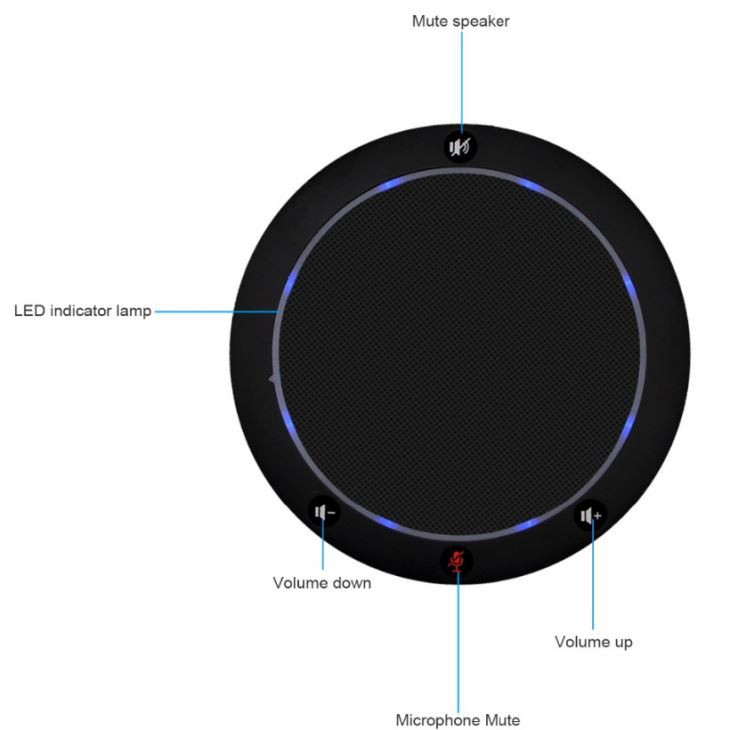
And if you need audio for your setup, we also offer the PC Microphone Speakerphone For Skype. It's a great way to ensure clear audio during your meetings.
Conclusion
Connecting an SDI camera to a monitor is a relatively straightforward process. By following these steps and troubleshooting tips, you should be able to get a clear and sharp picture on your monitor in no time.
If you have any questions or need more information about our SDI cameras or other products, feel free to reach out. We're here to help you with all your camera and audio needs. Whether you're setting up a home office for online meetings or a professional video production studio, we've got the right equipment for you.
References
- General knowledge about SDI camera and monitor connections from industry experience.
- Product specifications and manuals of our SDI cameras and related products.